My Pi Description

My Experiences With the Raspberry Pi -- Tracking My Learning -- My Pi Projects
Showing posts with label Arduine IDE. Show all posts

Friday, March 11, 2016

Interrupts and the Arduino Uno

Introduction

This post is a logical follow-up on my last post: "Programming the ATmega328P Registers From the Arduino IDE". This discussion is about using the Uno's interrupts. You have two ways to monitor the Uno's I/O pins (to monitor switches, for example). You can poll for inputs to change state, or you can use interrupts to sense when a change of state occurs.
Polling means you are just going to check the state of Uno I/O pins. In a simple system this if fine. Polling means your sketch does nothing else while you check the state of pins. Interrupts are a way to check pins without your sketch diverting its attention from its main tasks.
Here is an example taken from a project I have been reporting on in this blog: I have an enclosure that accepts a large number of temperature sensors. Measurements are made and the results are transmitted to a Raspberry Pi for storage and graphing. The enclosure has a 2 line by 16 character display. I use the first line to display a sensor's description, and the second line to display the sensor's latest temperature measurement. Since the display can only show one sensor at a time, I installed a switch that allows me to switch the display between sensors.
I first handled the switch by polling. I included a small routine in my code in a convenient location. This routine looks at the logic level of the pin connected to the switch, and if low, causes the display to go to the next sensor. A lot goes on in my main code, so the routine to check the switch repeats after several seconds have passed. If I'm not pressing the switch when the routine looks, the routine misses the change of state.
The operation just felt awkward. I now monitor the switch by interrupt. Whenever the switch is pressed, an interrupt occurs so my routine in the loop just looks to see if an interrupt occurred, not if my finger is on the switch. Much better operation.
When the condition for an interrupt occurs, a small function, you write, will run immediately. When that function has done all it needs to do, operation is returned to the task your sketch was doing at the time before the interrupt. Since you don't know when the interrupt will occur, you have to look closely at your sketch to assure there are no instances when an interrupt will impact some critical timing. There are ways to handle that situation. Interrupts can be turned on and off at any place in your sketch.

Interrupts and the Uno

If you want to use the Uno's interrupts, the Arduino Language Reference states there are only two pins, pin 2 and pin 3 you can use. I'm here to tell you it is possible to generate an interrupt from every I/O pin on the Uno. Unless you are using pins 2 and/or 3, however, you will not be able to use the Arduino IDE functions attachInterrupt() and detachInterrupt(). You can, however, use Register Programming to program interrupts on any I/O pin.
The interrupt capabilities of pins 2 and 3 are, however, more robust. All of the external interrupts, when enabled, will trigger an interrupt whenever a change of logic level is detected. Pins 2 and 3 have three additional capabilities.
The four capabilities available for pins 2 and 3:
  1. trigger an interrupt whenever the logic level of the pin changes (high to low or low to high).
  2. only trigger an interrupt whenever the logic level changes from a low to a high.
  3. only trigger an interrupt whenever the logic level changes from a high to a low.
  4. trigger an interrupt whenever the logic level of the pin is low.
Every pin operates with choice 1. Only pins 2 and 3 have the additional three choices.
If you are designing a new project, and you know you are going to use interrupts to monitor sensors or switches, certainly plan to use pins 2 and 3. If you need to utilize interrupts from other pins, or would like to learn the advantages of register programming interrupts, read on.

A Little Review

From my last post, we will need knowledge of the ATmega328P's datasheet, the AVR library for the ATmega328P, and how we handle pin names. To use register programming, we shift our focus from the Arduino Uno to the ATmega328P, itself. Indeed, you can remove a programmed ATmega328P from your Arduino and use it on a circuit board of your own design. With an FTDI adaptor, you can program the ATmega328P while it is on your circuit board.
To use register programming, we will not be using the pin numbers printed on the Uno (like pins 2 and 3). We will use the pin nomenclature found on the ATmega328P microcontroller datasheet. I'm going to repeat a graphic from my last post. Its a partial schematic showing how the Uno's pins connect to the ATmega328P:
All of the ATmega328P pins that connect to the Uno I/O pins have multiple functions. For example, the ATmega328P pin 2 has this label inside the graphic for the chip: "PD0 PCINT16/RXD". That means this pin has three functions:
  1. PD0 - Standard I/O function, Port D, Pin 0
  2. PCINT16 - External Interrupt Number 16. One of 24 External Interrupts. ATmega documentation calls them Pin Change Interrupts
  3. RXD - UART Receive Pin. For Serial Input From External Devices

External Interrupt Register Programming - Register Definitions From the ATmega328P DataSheet

I cobbled together the following from the ATmega328P datasheet:
Pin Change Interrupt Control Register, PCICR: As I described in my last post, the ATmega328P has three ports, Port B, Port C, and Port D. PCICR lets you to enable or disable interrupts on any of the three ports. You can enable interrupts on more than one port. To enable interrupts on a specific port, write a "1" to the applicable bit in the PCICR register. Writing a "0" disables interrupts on the applicable port. Use the following when writing to PCICR:
  • PCIEO (bit 0) controls the interrupts on Port B, pins PCINT0 - PCINT7. PCINT6 and PCINT7 are not available as those pins connect to the crystal.
  • PCIE1 (bit 1) controls the interrupts on Port C, pins PCINT8 - PCINT14. PCINT14 is not available as it reserved for the RESET function.
  • PCIE2 (bit 2) controls the interrupts on Port D, pins PCINT15 - PCINT23.
Pin Change Mask Registers, PCMSK0, PCMSK1, PCMSK2: These three registers let you enable or disable individual pins in a port whose interrupts have been enabled with the PCICR register.

External Interrupt Register Programming - The ATmega328P Arduino Library

As mentioned in the last post, you do not have to consult the library. I include it to show how the datasheet, pin names, and the library come together to help you to write your sketches. The "#defines" in the library show what names you can use in your sketches. These names relate directly to the names in the datasheet register definitions and the ATmega328P pin names, as shown in the datasheet.

Examples Using Interrupts

From my setup in my last post, I'm going to use the red and green switches, and the Arduino Uno. I/m not using the LEDs. If a switch is pressed, a message to the serial monitor will appear.
In my first script, below, I will connect the green switch to PC4 (PCINT12, Uno Pin A4), and the red switch to PC5 (PCINT13, Uno pin A5). In this example, both switches connect to the same port. In setup you can see where I have setup my registers. Remember, from my last post I use the ATmega328p's internal pull-up resistors. They are enabled in line 28. Lines 32 and 33 enable interrupts for the two switches. That should be self-explanatory from the preceding discussion.
Here is where the magic happens: Note lines 13 to 20. This function is called the "Interrupt Service Routine" or ISR. Most of the time we will be in the while loop in setup. If either switch is pressed, processing diverts to the interrupt service routine. When this routine is done, processing goes back to where it was in the while loop.
It is important that you write line 13, the function definition, exactly as shown in my sketch (except for the comment, of course). This ISR will react to any enabled interrupt on port C. If you enabled interrupts on port B, or port D you would substitute "(PCINT0_vect)", or "(PCINT2_vect)", respectively, for "(PCINT1_vect)".
You want your interrupt service routine to be as short as possible. Do not use delay() in the ISR, delay(), itself, uses interrupts. If you use millis() in your code, millis() will not continue to increment while you are in the ISR, resulting in errors.
Any variable declared outside of the ISR, but changed inside the ISR should be declared with the modifier "volatile". This changes where the values of these variables are stored within the ATmega328P. Declaring them as volatile assures the values will be stored in RAM and not in a register - more important is the fact the values will not be lost. In our case that refers to the variasbles "data" and "foundInterrupt".
What does the ISR do? First, it reads PINC (the port C input register), masks out all bits but those related to PC4, and PC5, and stores the value in the variable "data". Second, it disables the port C interrupts - this is a way to debounce the switch (further key presses will not trigger an interrupt). Lastly, it makes the Boolean variable "foundInterrupt" true. When it has done all of these things, it exits back to the while() loop.
Back in the while()n loop, The first "IF" statement will now be true. We now look at the variable "data" to see which switch was pressed (The bit will be low for the switch that was pressed). Variable "foundInterrupt" is set to false and the masked value of PINC is check. If neither switch is pressed, the interrupt for port C is enabled again. This last is another way to effect switch debounding. This assures that only one message will be displayed for each switch press. In this scenario, it is not possible to detect if both switches are pressed at the same time.
The sketch below illustrates connecting the two switches to different ports. The green switch connects to PB0 (PCINT0, Uno pin 8). The red switch connects to PC5 (PCINT13, Uno pin A5). As with the last sketch, look at setup() to see how the ports, pullup resistors, and interrupts are setup.
Since we would like to detect interrupts on both the B and C ports, we need an interrupt service routine for both ports. The two ISRs are very simple. When a switch is pressed, variable "foundInterrupt_PortB", or "foundInterrupt_PortC", is made true. Also, the interrupt for that port is disabled. This is for switch debounce to avoid multiple interrupts (without this provision, an interrupt would occur whenever the switch is pressed and whenever the switch was released).
I think the code in the while() loop is pretty clear. Note that this sketch allows the possibility to detect both switches pressed. Since the while() loop has a 2 second delay, if both switches are pressed within the same two second period, the serial monitor will show that both are pressed. To avoid that situation, you should disable both interrupts in the two ISRs. The last part of the while() loop enables the two interrupts if both switches are released.

Thursday, January 7, 2016

Programming the ATmega328P Registers From the Arduino IDE

Please Note:

Because I have no experience with other Arduino boards, I'm going to confine my comments to the Arduino Uno and the Atmel ATmega328P microprocessor.

Introduction

If you desire to do something beyond the Arduino programming language, like program an interrupt for any Uno I/O pin, do more precise control of pulse width modulation, or write to the EEPROM within the ATmega328P, you need to learn about the ATmega328P's internal registers. If you are studying someone else's code and see something like:
     PORTD |= (1 << PORTD1);
and you wondered what that meant, read on. By utilizing what I call "Register Programming", besides the examples above, you can more efficiently program the three I/O ports, use the ATmega328P's internal timers, program it's SPI, I2C, and serial interfaces, and make better use of the Analog to Digital converter pins, and the analog comparator.
I would not attempt to control a servo with the AnalogWrite() function. You need more resolution than 1 part in 256. Also, the frequency is wrong. AnalogWrite() gives you a frequency of 490Hz or 980Hz depending on the pin. The very common servo I am familiar with requires a frequency of 50Hz. Register programming gives you the opportunity of using an ATmega328P counter that gives you one part 65536 resolution rather than 256. You can also set the frequency exactly to your needs.
What are these registers? They are eight bit bytes of SRAM memory within the ATmega328P. These registers can be accessed through programming via the Arduino IDE. If you write "digitalWrite(13, HIGH);" in your code, you are writing to one of these resisters. The ATmega328P has 224 of these registers, but most are reserved for future use. I count 86 that are useful. All of these have particular purposes.

Resources

To do Register Programming you need three basic resources:
  1. Comparison between Arduino I/O pins and ATmega328P pins
  2. ATmega328P datasheet
  3. AVR libraries on your computer

Arduino Pins and the ATmega328P

The following partial schematic represents the ATmega328P and the Arduino Uno's pins as printed on the device and as used in the language reference:
The graphic of ATmega328P looks really messy. That is because, all the I/O pins, except power and grounds, have multiple functions. For the moment, we will concentrate on the ATmega328P's pin nomenclature closest to the border of the graphic, namely PB0 to PB7, PC0 to PC6, and PD0 to PD7. All but three of these pins connect to Arduino Uno I/O pins. PC6 does not because it is used by the Uno as a reset to the ATmega328P. PB6 and PB7 connect to the 16MHz crystal so can not be used as I/O pins. The other pins make up three ports, B, C, and D. Each port is controlled or monitored by three ATmega328P registers.

ATmega328P Datasheet

The next resource is the Atmel datasheet for the ATmega family of microcontrollers. Here is a link to that document.
Every function and every register is clearly presented and explained in the datasheet. You can learn a lot and do a lot by reading this document. Besides the control of the port registers, I have used the timer registers to precisely control motors and servos (better than using the Arduino's analogWrite() function). I have also used the registers for writing to and reading from the ATmega328P's internal EEPROM, and I have used them to utilize external interrupts.

ATmega328P Port Registers

Let's create an example using one of the three port registers. We will use all eight pins of port D. Four LEDs will connect to PD0 to PD3. These correspond to pins labeled 0 to 3 on the Uno. We will connect four switches to PD4 to PD7. These correspond to pins labeled 4 to 7 on the Uno. Here is the partial schematic:
The following is copied directly from the datasheet for the ATmega328P. It details the three registers devoted to Port D:

AVR Libraries On Your Computer

Here is the final resource. YOU DO NOT NEED TO CONSULT THESE LIBRARIES TO PROGRAM YOUR DEVICES. I include this discussion to show why the Arduino IDE compiler allows you to use the Atmel register and register bit names in your code.
Atmel has supplied libraries for a large number of their microcontrollers to the Arduino development suite. If you have a PC, more than likely, you will find these libraries here:
     C:\Program Files (x86)\Arduino\hardware\tools\avr\avr\include\avr.
There are 285 library files in this directory. No matter what version of the Arduino you have, you only need to know of one these libraries: io.h. You insert "#include <avr\io.h>" at the top of your code. The Arduino IDE, when compiling, will look at this file and knowing the specific Arduino you are using, will go to the appropriate library file. For the Arduino Uno, that library is iom328p.h. Wish I could print out the entire file here, but it is quite long.
iom328p.h consists of many, many #define statements. There is a #define for each of the ATmega328P's registers, and #define statements for each bit of each register. I never counted them, but I would think all 86 registers are addressed. All the nomenclature in the library is taken directly from the data sheet. PORTD in the data sheet is PORTD in the library. Consequently, you can write "PORTD" in your code.
Here is the portion of the library that deals with the three PORTD registers. Note the text corresponds exactly to the text in the data sheet:

Putting It All Together and Writing Code

While the text in the library conforms to the text in the data sheet register descriptions, the text on the schematic (also taken from the data sheet) does not. For example, the schematic pin labeled PD7 corresponds to PORTD7 in the PORTD register, PIND7 in the PIND register, and DDD7 in the DDRD register.
Now that we know that we can use the register names, like DDRD, and the register individual bit names, like DDD2, how do we write code? There are two basic ways I do it. If I want to specify all eight bits in a register (initializing a register), I will write something like this:
  PORTD = 0; //writes 0 to all eight bits.
  PORTD = 0b11110000; //top 4 bits high, lower 4 low.
If, however, I wish to simply change one, or more bits, without effecting the other bits in a register, I will do something like this:
  PORTD |= (1 << PORTD2);
This will make the logic level of I/O pin PD2 high, without effecting any of the other seven bits of PORT D. Rather than explain how this works here, I'll let you read further down this post where it will be explained.
Finally, it is time to discuss the functions of the three registers and how to used them in your code. We will make use of those four switches and four LEDs of our example circuit in our discussion.

The Data Direction Registers - DDRB, DDRC, and DDRD

The ATmega328P needs to know how you are using its pins. Are they inputs or outputs? That is the purpose of the data direction registers. You write a 1 to make a pin an output and a 0 to make it an input. In our example, PD0 to PD3 will be outputs, while PD4 to PD7 will be inputs. PD0 corresponds to DDD0 in the DDRD register. The other pins follow the same pattern as PD0. We now have enough information to write a line of code to establish which pins are inputs or outputs:
      DDRD = 0b00001111;
I'm using the binary representation (0b00001111 rather than 15 in decimal) because I can easily see each of the eight bits of DDRD. This is equivalent to using the pinMode() function in the Arduino language. However, using pinMode() you need to write eight lines of code:
      pinMode(0, OUTPUT);
      pinMode(1, OUTPUT);
      pinMode(2, OUTPUT);
      pinMode(3, OUTPUT);
      pinMode(4, INPUT_PULLUP);
      pinMode(5, INPUT_PULLUP);
      pinMode(6, INPUT_PULLUP);
      pinMode(7, INPUT_PULLUP);

Internal Pull-Up Resistors

What's with the PULLUP notation? As shown in the schematic, without further effort, the switches have no useful function. Whether a switch is pressed, or not, a logic 0 will be seen at the switch's pin. There are two ways to make the switches useful. The first is to connect a resistor between each of a switch's I/O pin and 5V. With this "pull-up" resistor connected, a logic 1 is recorded at the pin if the switch is not pressed. Since the switch connects the I/O pin to ground, a logic 0 will be recorded if the switch is pressed.
The second way utilizes a convenient feature of the ATmega328P. Each I/O pin has an internal pull-up resistor that can be connected at the pin. These ATmega328p pull-up resistors are connected by programming. We have seen how that is done using pinMode(). We can do the same, and do it for all four switches, in one statement using register programming. Per our example, we will use the PORTD register.
If you look in the data sheet at the description of the PORT registers, you will find if a pin is declared an input, in the port's DDR register, programming a 1 in the pin's PORT register will turn on the internal pull-up resistor. To make it clear, in our example, PD4 - PD7 have been declared inputs. Therefore, we will program PORTD4, PORTD5, PORTD6, and PROTD7 as 1s. We will do this in one line of code:
      PORTD = 0b11110000;

Port Registers - PORTB, PORTC, and PORTD

We have already seen an example of using the port register for enabling the internal pull-up resistors of input pins. The other obvious use of these registers is to turn on and turn off external components like LEDs. In our example, we have four LEDs. In the line of code above, where we connected internal pull-up resistors, we have also turned the four LEDs off. A logic 0 provides, essentially, ground voltage to the device. A logic 1 provides, essentially, +5V to the device. In our case, 0 volts turns the LEDs off. To turn an LED on, program a 1 to the pin's PORTD register. To turn LEDs D1 and D3 on, and to keep LEDs D2 and D4 off, we can write the following line of code:
      PORTD = 0b11110101;
Note, by writing the line above, we have to keep track of the logic levels of all eight pins in port D. Sometimes, that is not convenient, and not possible. Once we setup those pull-up resistors, we don't want to inadvertently disconnect them by programming. What we need then is a way to write to as few as one pin in the PORTD register without disturbing the logic levels of the other pins. To do that we need to be familiarize ourselves with the logic functions given to us by mathematician George Boole: the bitwise operators.

The Bitwise Operators

What does the following statement do?
     PORTD |= (1 << PORTD1);
This statement will turn on LED D2 without effecting the other seven bits of port D. It utilizes two of the six bitwise operators. Let's list the six operators and the characters that represent them in code:
~ NOT
& AND
| OR
^ EXCLUSIVE OR
<< SHIFT LEFT
>> SHIFT RIGHT
These operators are called bitwise because they operate on individual bits of a byte.

The NOT Operator ~

This is the simplest operator. It will flip all eight bits of a byte. The 1s become 0s and the 0s, 1s. For example, if PORTD = 0b00001111, ~PORTD = 0b11110000.

The AND Operator &

This takes two bytes and results in a third byte. The best way to visualize the operation is to place one byte over the other and then state the rule. For example:.
      00001111  the first byte
      01000010  AND with the second byte
      00000010  the resulting byte
We compare the two bits, in the same bit position, of each byte, and come up with the value of the bit, in the same bit position, in the resulting byte. The rule for the AND operation: if BOTH bits are a 1, the resulting bit is a 1. If either bit is, or both bits are, a 0, the resulting bit is a 0.

The OR Operator |

This also takes two bytes and results in a third byte. For example:.
      00001111  the first byte
      01000010  OR with the second byte
      01001111  the resulting byte
The rule for the OR operation: if EITHER bit is a 1, the resulting bit is a 1. If BOTH bits are a 0, the resulting bit is a 0.

The EXCLUSIVE OR Operator ^

This takes two bytes and results in a third byte. For example:.
      00001111  the first byte
      01000010  EXCLUSIVE OR with the second byte
      01001101  the resulting byte
The rule for the EXCLUSIVE OR operation: if BOTH bits are the SAME, the resulting bit is a 0. If the bits are DIFFERENT, the result is a 1. This also has the useful function of flipping, or not flipping a bit. A logic 1 in a bit position of one byte will flip the corresponding bit in the second byte. A logic 0 in a bit position of one byte will leave the corresponding bit in the second byte unchanged.

The SHIFT LEFT Operator <<

This operator takes a byte and an argument. The argument of the operator indicates how may times we will shift all the bits in the byte to the left. After each shift, a 0 is loaded into the least significant bit position (the bit on the right end). If we have the expression "PORTD << 3;", and PORTD is 0b00001111, the resulting byte is 0b01111000.

The SHIFT RIGHT Operator >>

This operator also takes a byte and an argument. The argument of the operator indicates how may times we will shift all the bits in the byte to the right. After each shift, a 0 is loaded into the most significant bit position (the bit on the left end). If we have the expression "PORTD >> 3;", and PORTD is 0b00001111, the resulting byte is 0b00000001.

Now That We Have The Fundamentals, Let's Light Some LEDs

How would we turn on LED D3 and not effect the other LEDs or the switches? Let's write the line of code and then take it apart:
     PORTD |= (1 << PORTD2);
First, we know that is a compound operation like "A += 1;" is the same as "A = A + 1;" We can expand our expression to:
     PORTD = PORTD | (1 << PORTD2);
Looking at the library we see "#define PORTD2  2". We can replace PORTD2 with 2, as below:
     PORTD = PORTD | (1 << 2);
(1 << 2) indicates a shift left with the argument of 2. The operand is the integer 1 which we can state in binary form as 0b0000000000000001. The operation wants us to left shift this twice putting a 0 in the least significant bit position each time. The result of (1 << 2) is 0b0000000000000100. We can drop the upper eight bits as they will have no impact when next operating on the eight bit PORTD. The result now is 0b00000100.
This now resolves to:
     PORTD = PORTD | 0b00000100;
Let's assume PORTD is 0b11110000. Here is what the operation looks like:
      11110000  the original value of PORTD
      00000100  OR with the second byte
      11110100  the resulting value of PORTD. --- LED D3 TURNS ON.
We turned LED D3 on, now let's turn it off (without effecting the other LEDs or switches. Here is the line of code:
      PORTD &= ~(1 << PORTD2);
Some of the line of code is the same as before. (1 << PORT2) resolves to 0b00000100. However notice the NOT operator, ~. This flips all eight bits resulting in 0b11111011. Now we apply the AND operation as shown below:
      11110100  the original value of PORTD
      11111011  AND with the second byte
      11110000  the resulting value of PORTD. --- LED D3 TURNS OFF.

Writing To Multiple Outputs

What if you wanted to turn on (or off) two or more LEDs? You can string the operations together in one line. Let's turn on LED D1 and LED D4, then turn them off:
      PORTD |= (1 << PORTD0) | (1 << PORTD3);  ON
      PORTD &= ~(1 << PORTD0) & ~(1 << PORTD3);  OFF
You can even mix them. This will turn LED D1 and LED D3 on and LED D2 and LED D4 off:
      PORTD |= (1 << PORTD0) & ~(1 << PORTD1) | (1 << PORTD2) & ~(1 << PORTD3);
For more fun, stick that line above in setup(), and add the following lines in loop():
      PORTD ^= (1 << PORTD0) ^ (1 << PORTD1) ^ (1 << PORTD2) ^ (1 << PORTD3);
      delay(500);
This will toggle the four LEDs at a 1Hz cycle. Try it.

Reading the Logic Level of Input Pins

We Can't Forget Those Switches. Continuing the example, the switches are connected to input I/O pins. To read a pin that has been declared an input we use one of the PIN registers. In our case, that will be PIND. Since we have four switches we need a way to read one switch and ignore the others. To see how this is done, the line of code to evaluate if switch SW1 (connected to PD4) is pressed is:
      PIND &= (1 << PIND4);
The above expression will be logic 0 if SW1 is pressed and not 0, actually 16, if released. The other switches will not effect the result.
I, frankly, don't always use that last method for reading from a register. I usually establish, and apply an eight bit datamask to the value in the PIN register. Like this to read the value of PIND4:
      byte datamask = 0b00010000;
      byte data;
      data = PIND & datamask;
Here is a simple sketch. If SW1 is pressed, LED D1 will light, etc. This is not the best way to do this as it allows multiple LEDs to be lit and there is no switch debouching. The better way is to use interrupts to signal when a switch is pressed. My next blog entry will deal with that exact topic. Interrupts also are best handled with register programming.

One More Thing

Here is a photo of the actual hardware:
I had to Photoshop in the colors of the LEDs. They are of clear plastic and do not photograph well when lit.
Since we have introduced color, why not put that into the program. Here is the sketch carried to the extreme by adding a bunch of #define statements:

Saturday, April 11, 2015

Printing Leading Characters With Arduino IDE Serial Monitor

I have a blog post on calculating and checking the Cyclic Redundancy Check (CRC) byte when transmitting serial data. Here is a link. Near the bottom, is a sketch fragment of my CRC function and a table. The table illustrates how the CRC is calculated as the function progresses, bit, by bit, through the data. Here is the output I received from the Arduino IDE Serial Monitor:
That's really ugly. The serial monitor that is part of the Arduino IDE does not print leading zeros. I wanted to see those zeros. "CRC" is an integer, so has 16 bits. "inByte[i]" is 8 bits long. I wrote a small function to calculate how many leading zeros to print when printing a binary number. Then, I expanded it to to handle numbers of any base, and finally, to add any leading character, not only zeros. This is the output using my leading character function:
My leading character function follows. It is amazingly simple. However, it's not universal. It does not handle minus signs or decimal points:
The "pow" operator raises the value in "base" to the power of "position" - 1. For example, if you wish to print a 16 bit binary number, "factor" will be 215. You can see that "factor" can become a very large number, especially if you are dealing with decimal or hex numbers. Consequently, "factor" is a double, a floating point data type. However, the function may not work if "factor" wants to be too large. Just imagine if you wanted 16 characters of a decimal number. "factor" will be 1,000,000,000,000,000. A double data type for all Arduinos beside the Due is four bytes in length, not enough bytes to express 1015. The Due may be able to handle 1015 - it's double is 8 bytes in length.
Leading spaces can come in handy for printing dates. You can use it to line up dates like this:
  • April   9, 2015
  • April 10, 2015

Tuesday, December 16, 2014

Jig To Load a Bootloader and Upload Sketches To ATmega328P

Note: I only write about what I know. Although there are many Arduinos and Arduino type products, I only have experience with the Arduino Uno Rev3. Likewise, the only Atmel microcontroller I know is the ATmega328P.

A Little Background (well not so little)

I have Atmel ATmega328P microcontrollers on two devices: An Arduino Uno (Rev 3), and a Gertboard. The Gertboard connects to, and is programmed by, my Raspberry Pi. In both cases the microcontroller is in a socket, so is removable. I have developed applications for both where I needed to remove the ATmega328P and install it in another device. I use the Arduino IDE system to develop sketches on both the Arduino and the Gertboard/Raspberry Pi. There is more on the Gertboard at the end of this post.
I developed a camera remote control using the Gertboard and removed the programmed ATmega chip and installed it on a circuit board. The circuit board, a 434MHz transmitter, and a motion detector were mounted in a box. I reported on that project in this blog entry.
I am completing a project that uses both the Arduino and the Gertboard/Raspberry Pi. In this case, it is the sketch developed on the Arduino that must run on an ATmega328P that is removed from the Arduino. This project, that I will report on later, requires the ability to communicate with the ATmega328P once it is installed in my mobile device.
Both projects required me to program a new ATmega328P IC. However, you can not just insert a new chip on the Arduino or Gertboard and upload sketches to it. Out of the box, the microcontroller will not use the external 16MHz crystal of the Arduino or the 12MHz resonator of the Gertboard. It will use its internal 8MHz RC oscillator frequency reference and then divide that frequency by 8. The resulting clock frequency will be 1MHz.
In order to change the clock source, you must change the logic level of a couple of "fuse" bits. I use "" around the word fuse, because the term is actually a carryover from the time when ICs, like microcontrollers, had actual fuses. Each fuse would control the logic level of one bit. If the fuse was blown, the bit would be a 0, if not blown it would be a 1. You could always change a 1 to a 0, by blowing the fuse, but you had no way to change a 0 to a 1. If you wanted a 1, but programmed a 0, in error, you had to replace the chip. That is not the case today.
Now, "fuse" bits can be changed from 1 to 0 and 0 to 1 anytime. The ATmega328P has three, eight bit bytes of these "fuse" bits. They control different functions and leave the factory in a default configuration. In addition, there is a byte (8 bits) of lock bits. More on these later. To setup a new ATmega328P for the Gertboard, you run a program on the Raspberry Pi called avrsetup. All this program does is to use avrdude to set the lock bits and the fuse bits. It leaves all bits not concerned with the clock frequency to their default settings. The four bits that select the clock source are changed from "Calibrated RC Internal Oscillator" to "Full Swing Crystal Oscillator". And, the divide by 8 function is turned off. Avrdude is like an operating system for the Atmel microcontrollers. All programming of the microcontrollers are done through avrdude even if you use the Arduino IDE.
For the Gertboard/Raspberry Pi, setting those fuse bits is all you have to do to use a new ATmetga328P. That is not the case with the Arduino. A new ATmega328P for the Arduino needs those same fuse bit changes and needs one more thing: a bootloader installed. What is a bootloader, and why doesn't the Gertboard need one?
When you upload a sketch to the flash memory of the ATmega328P, there are two direct ways. One is to use a parallel configuration, which I will not mention further (just going to forget it exists). The other is to use the chip's SPI (Serial Peripheral Interface) bus. This synchronous, serial, bus consists of four lines: SCK (Serial Clock), SS (Slave Select), MOSI (Master Out Slave In), and MISO (Master In Slave Out). I upload sketches to the Gertboard via the SPI bus. The Raspberry Pi is the Master, the ATmega328P on the Gertboard is the Slave. Since the direct programming method is employed, no bootloader is necessary.
Atmel, in their wisdom, realized that not everyone would like to use the SPI bus, but would wish to use the more universal serial bus (or something else). The serial bus interface has several names such as RS232 and UART. It consists of several signals: TX (transmitted data) and RX (received data). The TX of the one device is connected to the RX of the other device, and RX of the first device is connected to TX of the second device. There are more signals, but, typically, they are not used. However, a signal, DTR (data terminal ready), for example, may be used to reset the ATmega328P. Once the ATmega328P is reset, it will start running any sketch loaded in flash from its beginning.
Atmel provided an area of flash memory for the user to install code allowing the rest of the flash memory to be uploaded via the serial bus. This code is the bootloader. For the ATmega328P, it can take up as much as 2 Kbytes of the 32 Kbytes of flash memory. The flash memory, not reserved for the bootloader, is the Application memory. Once the bootloader is loaded, it can load a new sketch into the Application memory via the RX and TX connections of the serial bus.
So, how do you get the bootloader loaded in a new ATmega328P? It requires hardware and software. Since a new ATmega328P has no bootloader, the bootloader must be installed from the SPI bus - the direct, primary, interface to the chip. That means you need an in-circuit programmer. There are inexpensive, commercial, units available like the USBtinyISP. They have USB on one end and the four SPI connections on the other end (SCK, SS, MOSI, and MISO), plus power and ground. They have a 6 pin ribbon cable and connector that plugs into your target device that contains the microcontroller chip you want to access. There is a standard 6 pin SPI configuration that receives the ribbon cable connector. My Arduino Uno has two of these 6 pin connectors, one for the ATmega16U2 and the other for the ATmega328P. You can install a new ATmega328P on your Arduino Uno and connect a programmer to it to upload the bootloader. But, I don't do that.
I have no experience with the aforementioned programmers so I will not discuss them. There is another programmer that works really well - and I have experience with that one. This programmer is the Arduino itself. You can't use it to load a bootloader on its own ATmega328P, but it can be used to install a bootloader on another Arduino's ATmega328P. However, I do a variation of that. I use the Arduino Uno to install the bootloader on an ATmega328P that is on a jig I made. This is the jig that is the subject of this blog post.
Now we need some software. There are two pieces of this. One piece is the bootloader itself. The Arduino IDE package has copies of the bootloaders. There are different bootloaders for the different ATmega devices and the different Arduinos. The other piece of software is the software to load the bootloader. This software is a sketch running on my Arduino Uno that is used as a programmer. This software must do several things. I have not studied this software to know how it works, but from my knowledge of the ATmega328P, I know it must do the following:
  • Program the fuse bits to select the clock source to "Full Swing Crystal Oscillator" and turn off the clock divide by 8.
  • Set the Lock bits to allow programming of the bootloader in the Boot Flash Section
  • Set the fuse bits to the amount of flash memory devoted to the Boot Flash Section (up to 2 KBytes)
  • Upload the bootloader program to the Boot Flash Section
  • Set the lock bits so the Boot Flash Section can no longer be written to, protecting it from being overwritten.
There is one last point to consider before moving on to the details of my programming jig. Could there be an Arduino that programs the microcontroller directly over the SPI bus? Certainly. There are ICs that convert USB to SPI. That would eliminate the bootloader. We are forgetting one thing though: How do you communicate with a sketch? For example, a sketch that requires you to answer some questions before proceeding. The answer is the Serial Monitor. Access to the Serial Monitor is via the same interface the Arduino uses to upload sketchs - the same TX and RX connections to the ATmega328P.
For the Gertboard, the Serial Monitor button exists on the Arduino IDE running on the Raspberry Pi. However, it does not work. A separate connection to the ATmega328P's UART must be made. Consequently, the Raspberry Pi/Gertboard requires six signal connections: SCK, MOSI, MISO, SS, and TX and RX. The Arduino UNO only has two ATmega328P signal connections: TX and RX. For the Gertboard, I have to open a separate terminal window and run a terminal program to communicate with a running sketch. All-in-all, the loss of a little flash memory to the bootloader seems worthwhile.

An ATmega328P Programming Jig

The following is the schematics and board layout diagram for my jig:
Schematics For ATmega328P Programmer
Here is the layout of the board with components and wiring:
Board Layout For The ATmega328P Programmer
Looking at the board layout, the ATmega328P sits in a 28 pin ZIF socket (all that green in the diagram). This allows an IC to be quickly inserted and removed. Check out the product page from Sparkfun.
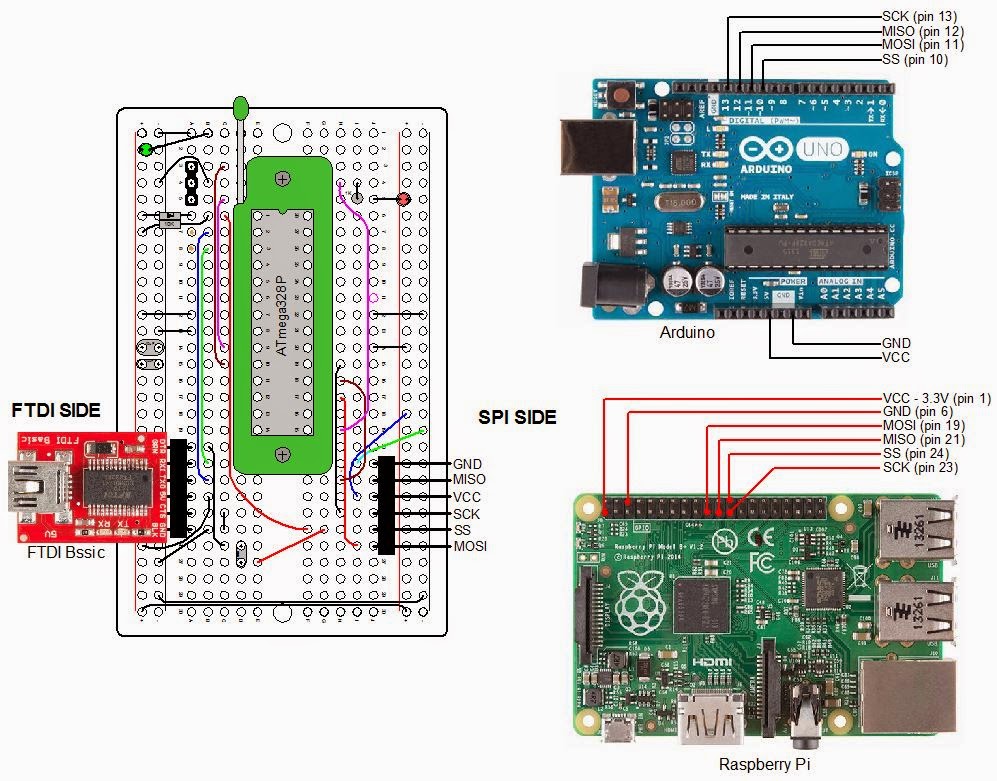
The connector pins labeled SPI are for female - female jumper wires. This interface connects to the Raspberry Pi or to the Arduino Uno. Connections to the Raspberry Pi are to set the fusebits on an ATmega328P, and to load sketches developed on the Gertboard. The connections to the Arduino UNO are only to install a bootloader on an ATmega328P.
Note the interface labeled "FTDI". This interface is used to upload sketches to an ATmega328P (must have the bootloader installed) that I have developed on my Arduino. In addition, it provides access to the Arduino IDE Serial Monitor, allowing us to communicate with a program running on the jig's ATmega328P. FTDI is the name of a chip manufacturer that makes USB to Serial ICs. The FTDI interface on my jig connects to a Sparkfun FTDI Basic breakout board. This small board has a mini USB on one end and a six pin female connector on the other that plugs directly onto my jig.
There is a three pin female connector labeled resonator. Since the Gertboard and the Arduino Uno operate on different frequencies, the connector allows a 12MHz resonator to be connected for the Gertboard sketches and a 16MHz resonator for the Arduino operations.
There are two LEDs on the jig. The green one lights whenever power is applied to the jig. 5V can come from the FTDI board or the Arduino Uno. The Gertboard will supply 3.3V. The red LED is a sanity check and is connected to PB1 of the jig (this corresponds to pin 9 of the Arduino). After loading a bootloader, I can check if I can upload a sketch to a new ATmega528P by running a version of Blink. Anytime I need to check the jig or my connections, I can program that red LED.

Parts List

  • Prototype Breadboard PCB, half size: Adafruit 1609, $4.50
  • ZIP Socket, 28 pin: Sparkfun PRT-09175, $2.95
  • Right Angle Header Strip for FTDI and SPI: Mouser 571-9-103323-0, $2.24 for a strip of 40 pins
  • ATmega328P Microcontroller: Mouser 556-ATmega329K-PU, $3.55
  • Socket strip for Resonators: Digikey 1212-1125-ND, $3.89 for a strip of 64. Perfect socket for resonator pins
  • 16 MHz Resonator: Mouser 520-ZTT1600MX, $0.50
  • 12 MHz Resonator: Mouser 520-ZTT1200MX, $0.50
  • Red LED - clear housing: Digikey C503B-RCN-CW0Z0AA1-ND, $0.15
  • Red Green - clear housing: Digikey C503B-GCS-CY0C0791-ND, $0.24
  • 10μF, 16V Tantalum capacitor: Mouser 581-TAP106K016CRW, $0.53
  • 0.1μF 100V Ceramic capacitor: Mouser 1C20X7R104K100B, $0.18 ea.
  • 1N4148 diode: Mouser 512-1N4148, $0.10
  • 10KΩ Metal Film Resistor: Mouser 71-RN55D-F-10K, $0.10
  • 1KΩ Metal Film Resistor: Mouser 71-RN55D1001F/R, $0.10 ea.
I use LEDs with clear bodies. I anticipate using LEDs in battery powered projects so I want to minimize the current consumed by LEDs. Normally, you calculate the series resistor to deliver about 10ma. of current to drive the LED on. A resistor of about 330Ω is commonly used. The LEDs with the clear housings require much less current so I typically use a 1KΩ series resistor (about 2ma.). Even that can seem too bright, I might try 2KΩ on my next project.

Using the Jig

Diagram used for all situations follows:
Connecting The Programming Jig

Installing a Bootloader

Make connections as in the diagram above from the jig's SPI connector to the Arduino. Make sure there is a 16MHz resonator installed on the jig. Install an ATmega328P on the fixture. By the way, I probably should have mentioned it before, but do NOT use a ATmega328 unless you are capable of adding support for the device in avrdude and the Arduino IDE. The two devices have different signatures so the ATmega328 will not be recognized unless you are capable and willing to make the software changes I mentioned. The two devices are about the same but the "P" version runs at lower power.
Do the following from the Arduino IDE:
  1. Upload the sketch ArduinoISP: Files\Examples\ArduinoISP.
  2. Select the Arduino Uno board (selects the bootloader for the ATmega328P because that is the microprocessor for the Uno): Tools\Board\Arduino Uno.
  3. Select the Arduino as ISP as the programmer: Tools\Programmer\Arduino as ISP.
  4. Install the bootloader: Tools\Burn Bootloader.
That's all there is to it. It takes less than a minute for the process to complete. Once the TX and RX LEDs, on the Arduino, stop blinking, the bootloader is loaded.

Uploading Sketch Via FTDI

Once the boatloader is installed, you can upload a sketch to the jig using the FTDI Basic board. When I plugged my FTDI Basic into my USB port, for the first time, I found that the drivers had already been installed on my Windows 8.1 system. They must have been part of the Arduino IDE installation. If you do not have the drivers, check out Sparkfun's product page for instructions on getting them. The FTDI Basic costs about $15 at Sparkfun.

Raspberry Pi/Gertboard

The Gertboard is a expansion board that connects to the Raspberry Pi's GPIO pins. It has several different circuits useful for interfacing the Raspberry Pi to the outside world. The Gertboard works with all thee versions of the Raspberry Pi (A, B, B+). Here is what the Gertboard offers:
  • ULN2808 containing six open collector outputs, each capable of driving a 500ma. load up to 50V (from a separate power source)
  • MCP4802 dual channel D>A (digital to analog) converter
  • MCP3002 dual channel A>D (analog to digital) converter
  • ROHM BD6222HFP H bridge motor controller (need a separate power source)
  • 12 output buffer circuits
  • 12 input buffer circuits
  • 12 red LEDs
  • 3 momentary switches
  • ATmega328P microcontroller. Running on 3.3V with a 12MHz resonator. All IO pins are available.
The documentation, unbelievably not provided when you purchase the product, is excellent. It can be found here. The manual references C and python programs that can be used to test out each section of the Gertboard. In order to use the ATmega328P, a bit of software must be loaded in the Raspberry Pi. This is also referenced in the manual and is available from Gordon Henderson. Here is a link to his blog. It all just works great. Newark Element14 has the Gertboard for $40. Inexplicably, Sparkfun sells it for $60. On Sparkfun's product page it lists the microcontroller as an ATmega328. It's an ATmega328P.
My jig will look to the Raspberry Pi just like the ARmega328P on the Gertboard. Therefore, if you want to interface an ATmega328P to a Raspberry Pi without using the Gertboard, the same software from Gordon will do the job. Just make the connections as in the diagram above.
Once you upload a sketch, you may need to communicate with the ATmega328P, such as you do with an Arduino. For the Arduino, you use the Serial Monitor function of the Arduyino IDE. You will not be able to do that from the Raspberry Pi, but you can still communicate with the ATmega328P. You connect RX and TX on the FTDI side of the jig to TX and RX, respectively, on the Raspberry Pi. You connect the FTDI TX to pin 10 (RX) of the Pi and FTDI RX to pin 8 (TX) of the Pi. The alternative to the Serial Monitor is to use a terminal program like minicom within a terminal window on the Raspberry Pi. The installation and use of the minicom program is covered in the Gertboard User's Manual.

Going On From Here

Obviously, the jig as it stands, does not have much utility as it only uses one of the many ATmega328P's IO pins. However, the concept can be used to make something more useful. Here is an example of a project in the works:
All of this goes into an enclosure. I will add temperature sensors and a RF transmitter, with antenna. The ATmega328P is mounted in a standard 28 pin socket instead of the Zif socket. A 16MHz crystal provides the clock reference.
Note the FTDI basic board. It's used to communicate with the ATmega328P. This is necessary to tell the LCD what text to display. Once power is applied, the display is blank. I attach the FTDI Basic board, connect it to the PC, via a USB cable, and bring up the Arduino IDE. The sketch is already running on the ATmega328P so I click on the Serial Monitor and am greeted with a request to type a message. Once that is done, the message is displayed in a Time Square Scroll. I can then remove the FTDI Basic board.
Please check out my blog entries of March 7, 2013 to April 18, 2013 for discussions of my LCD projects for the Raspberry Pi. The last two posts, specifically, are about my Times Square Scroll software. I have since converted the software from python to C to run on the Arduino. I'll report on that effort at a later time.

Saturday, July 5, 2014

My 1-Wire Arduino Library for DS18B20 Temperature Sensor

This is a continuation of my last blog post.

The Include File For the 1-Wire DS18B20 Library

This 1-wire library will work equally well with an Arduino and a Gertboard.
At the top of the file are #define statements to account for your hardware set-up. Unless you use the same hardware choices I made, you make the appropriate changes to the file and save the file.
The first #define is for CLOCK_FACTOR. I reported in an earlier post that the delayMicroseconds(), Arduino IDE, function is not accurate when using the Gertboard. I tested this thoroughly, at different values, using an oscilloscope. My results show that you must divide the desired delay by 0.67 to get an accurate delay. Consequently, if you use the Gertboard, make the clock_factor 0.67. Select 1.0 for the Arduino. The difference is caused by the 12MHz clock frequency of the Gertboard compared to 16MHz of the Arduino. The delay() function requires no correction.
The rest of the #defines relate to the selection of the two Arduino data pins you select. One pin is the data pin for the 1-wire bus, and the other is the pin that controls the transistor for parasitic power. I will have a post devoted to the parasitic power transistor circuit. Hopefully, my comments, in the file, are enough to guide you through the selections.
If you use the Gertboard you can take the pin names as they appear by the J28 connector (PB1 for example). These are the same designations as used in the ATmega's data sheet, and, more importantly, the same designation as used in the avr/io.h include file. If you use the Arduino, where pin numbers are 0 to 13, you will need to convert them to the ATmega numbers.
Arduino ATmega Arduino Atmega Arduino Atmega
0 PD0 5 PD5 10 PB2
1 PD1 6 PD6 11 PB3
2 PD2 7 PD7 12 PB4
3 PD3 8 PB0 13 PB5
4 PD4 9 PB1
The rest of the file declares the functions in the library source file. These are the public functions, those that can be called from a sketch, and the private functions, those that are not available from sketches.

The Soruce File For the 1-Wire DS18B20 Library

Most of the functions are short. Their comments are longer than the code. You will have to be familiar with ATmega register programming and bit manipulation. I have tutorial on useing direct register programming here.
In the next several posts, I'll go into some detail on the search_device() and calculateCRC_byte() functions. But, first, I need to address parasitic power and what to do about it. That's next.

Saturday, August 17, 2013

Gertboard - Camera Remote Control - Arduino Sketch #1

Continued from last post
I have covered the project scope, the hardware involved, and the digital patterns we have to reproduce. What's left is the code to make it all happen. I have two sketches, Arduino parlance for source code. The first was written without using the motion detector. Instead, the user is prompted to input an "a" or "b" at the keyboard. An "a" transmits the code to take a picture. Pressing "b" is like pushing the camera exposure button halfway down. The second sketch, presented in the next post, incorporates the motion detector and eliminates the keyboard input.
I am using the Arduino IDE (Integrated Development Environment) to write the sketch, compile the sketch, verify the C code, and upload the machine code to the microcontroller. The only IDE function we cannot use is its serial monitor which provides screen output and keyboard input. The IDE's serial monitor requires a USB connection (as would be used with an actual Arduino product). The Gertboard has no USB. If we wish to send and receive data from the microcontroller, we need an alternative.
That alternative is a terminal program called Minicom. It's like the old DOS Telex program used to talk over the modems we used in the old days. The Gertboard User Manual talks us through its installation and configuration. Minicom communicates through the UART(Universal Asynchronous Receiver/Transmitter) port. This two pin port is signified by the pins TX and RX, both on the microcontroller and the Pi/Gertboard. See the block diagram two posts ago. TX of the Pi is connected to RX of the microconroller, while RX of the Pi connects to TX of the microcontroller. The stdio program we usually use for the Raspberry Pi is LXTerminal. Even though it has "Terminal" in its name it's really a command line program. If fact, as we do with most programs, we launch Minicom from LXTerminal.
Let's take a look at the script:
Thanks to the Arduino IDE, writing the script (C code) and getting the code onto the microcontroller is simplified. The functions for serial communications, time delays, and handling digital and analog inputs and outputs to the ATmega device are available without adding libraries. There are not even any #include statements in my script. Once you write the script, you don't worry about makefiles. One click handles compiling the code and uploading the machine code to the microcontroller. All of the built-in functions as well as basic C language is included in a very useful help reference. There are other libraries included in the software, as well, that you can include in your scripts. For example, there is a library for the 16x2 LCD displays, and a 1 Wire library (see my temperature sensor posts).
My script is divided into three parts: variable assignments, functions I have written, and the main part of the program. The main part of the program is divided into two parts: a "setup:, and "loop", as required by the IDE. "setup" runs when you first apply power, or first upload the code. It establishes the UART baud rate at 9600 bps and makes the ATmega pin we connect to the RF transmitter an output. "loop" runs continuously after that.
Looking at the variable assignments, there is something I do not understand. You see the variable "one_pulse", it establishes the minimum pulse width in microseconds. This is the time for the "H" or "L" pulse (see below), the time for all other characters are multiples of the time for "H" and "L". From the Audacity display, using the camera remote control transmitter, I calculated the time for "one_pulse" to be 284 microseconds. The time in my script, after altering "one_pulse" to match the patterns, is 415 microseconds, a difference of 46%. I've done a bunch of testing, and it's a mystery to me. If anyone has an idea please let me know.
The heart of the script is the two functions, "send_bits" and "transmit". As we cycle through the pattern we send the characters to "send_bits" then "send_bits" passes the definition of each character to "transmit". "transmit" sends the pattern to the microcontroller. I've repeated the diagram from the last post here to make it clearer how the characters, "H", "L", "E", "A", "B", and "T" are defined:
An important note: The 434 MHz transmitter inverts the bit logic. If I send a low pulse from the microcontroller, to the RF transmitter, the RF transmitter sends a high pulse. That is why a low is written to outpin when the variable "is_high" is true. I think the rest of the code should be pretty straight forward.